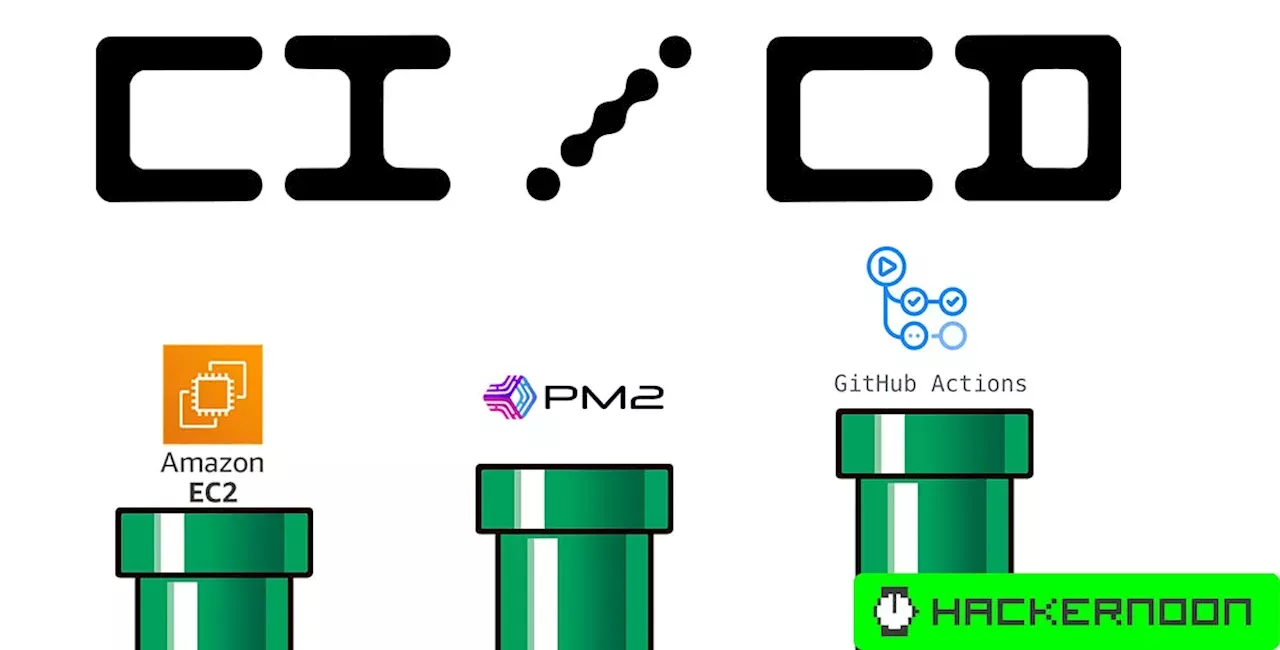
Creating a CI / CD Pipeline for a webservice on github connected to an AWS Ec2 server
Hey everyone, today I want to do a tutorial on one of my favorite ways to deploy a quick REST API, using NodeJS/Express, to an Amazon EC2 server. This technique essentially enables your EC2 server to respond to changes pushed to your GitHub repository.
First Things First, “Hello World” Create a new directory on your machine for a NodeJS/Express app to live. I’m calling mine rekognition Open up a terminal, and run this command to initialize a package.json npm init -y Install express.js npm i express Create a basic express server with a ‘hello world’ at the default route const express=require; const app=express; const port=3000; app.get=>{ res.send; }); app.listen=>{ console.log; }); Test to make sure you are seeing ‘Hello World!’ at http://localhost:3000/ Good job, step one complete! 💪 Next, Let’s Push Our Code to GitHub Initialize a Git repo in your directory, and make your first commit — git init git add . git commit -m "First commit" Create a remote repository on your GitHub account Add the new repo as the origin, and push your branch. git remote add origin git push -u origin master Replace with the link to the remote repo that you just created. You might need to change your repository settings to use ‘master’ as the default branch instead of ‘main.’ After you do this you can delete the ‘main’ branch. Step 2: complete! We’re cooking with gas ⛽️ Let’s Go to the Cloud — Setup the Ec2 Server Here are the steps to launch your EC2 Instance: Log in to your AWS Management Console. Navigate to the EC2 dashboard, and launch a new instance. Choose an appropriate AMI ; I am using Amazon Linux 2. Select an instance type . Configure instance details, add storage, and add tags as necessary. Configure a security group to allow inbound traffic on ports you’ll need . Review and launch the instance; ensure that you save the key pair used for SSH access. Now, let’s test logging into your server via SSH on a terminal: ssh ec2-user@ -i .pem Replace the variables there with the values you defined for your EC2 instance. If you see this you’ve connected to your server, congrats! 👏 We’re Not Done Just Yet Though — We’re Just Getting Started 😏 Let’s install NodeJS on our server:sudo yum install -y nodejs Install pm2 globally on our server via npm sudo npm i -g pm2 Install git on the server, and configure your credentials: sudo yum install git -y git config --global user.name "Your Name" git config --global user.email "your.email@example.com" Okay, now we’re going to create a var/www/ folder if it does not already exist: sudo mkdir -p /var/www Then add ownership to our ec2-user: sudo chown -R ec2-user:ec2-user /var/www Navigate to the directory from the root of your server — not the /home folder people 👌 cd ~/var/www Now, from here, we will clone our git repository: git clone https://github.com/USERNAME/REPO_NAME.git YOUR_PROJECT_DIRECTORY Replace and with your own values. Next, we change the directory into our repository, so cd YOUR_PROJECT_DIRECTORYcan create the ecosystem.config.js file for our pm2 setup: nano ecosystem.config.js It looks like this: module.exports={ apps : }; Cool beans, okay — once that is created and saved, let’s start up the app with pm2: pm2 start ecosystem.config.js Now, we can check that we have a ‘Hello World!’ from our server on port 3000: To make pm2 start automatically on server restarts, let’s run: pm2 save pm2 startup To check your server is running, you can do pm2 status; you can read the docs on pm2 here If you’ve made it this far, you are a superstar ⭐️ Integration With GitHub Actions This is the last step in our process. We’re going to create a .yml file for Github actions to update our server anytime a change is pushed to our master branch In your repository, go to the ‘Actions’ tab and create a new custom workflow. I am calling mine nodejs.yml Here is the .yml file for updating the repo and restarting pm2: name: Node.js CI/CD on Amazon Linux on: push: branches: jobs: deploy: runs-on: ubuntu-latest steps: - uses: actions/checkout@v2 - name: Install dependencies run: npm install - name: Deploy to AWS EC2 uses: appleboy/scp-action@master with: host: ${{ secrets.REMOTE_HOST }} username: ${{ secrets.REMOTE_USER }} key: ${{ secrets.SSH_PRIVATE_KEY }} source: "./" # This now correctly points to the current directory target: "/var/www/your_project_directory" - name: Restart PM2 application uses: appleboy/ssh-action@master with: host: ${{ secrets.REMOTE_HOST }} username: ${{ secrets.REMOTE_USER }} key: ${{ secrets.SSH_PRIVATE_KEY }} script: | cd /var/www/your_project_directory pm2 reload all # This command restarts your application Make sure to update ‘your_project_directory’ Lastly, you’ll need to add these environment secrets. REMOTE_HOSTthis is the IP address of your server; REMOTE_USER this is ec2-user for Amazon Linux 2 AMI, and then paste the contents of your .pem file as the SSH_PRIVATE_KEY You can do all of this in the repository settings: That’s it! We’re done yay 😁 You can test this all by changing the ‘Hello World’ message and pushing that change to your master branch; then you should see the update at http://your.ip.address:3000 It is a bit of a process to set up, but when you’re developing, it’s really nice to have an easy CI/CD pipeline automatically deploying changes to your REST API server. That way, you can quickly deploy the changes live and see them in the front end of your web/mobile application. Let me know if this was useful in the comments, and thanks for reading!! Peace out, — Wes First Things First, “Hello World” Create a new directory on your machine for a NodeJS/Express app to live. I’m calling mine rekognition rekognition Open up a terminal, and run this command to initialize a package.json npm init -y npm init -y Install express.js npm i express npm i express Create a basic express server with a ‘hello world’ at the default route const express=require; const app=express; const port=3000; app.get=>{ res.send; }); app.listen=>{ console.log; }); const express=require; const app=express; const port=3000; app.get=>{ res.send; }); app.listen=>{ console.log; }); Test to make sure you are seeing ‘Hello World!’ at http://localhost:3000/ http://localhost:3000/ Good job, step one complete! 💪 Next, Let’s Push Our Code to GitHub Initialize a Git repo in your directory, and make your first commit — git init git add . git commit -m "First commit" git init git add . git commit -m "First commit" Create a remote repository on your GitHub account Add the new repo as the origin, and push your branch. git remote add origin git push -u origin master git remote add origin git push -u origin master Replace with the link to the remote repo that you just created. You might need to change your repository settings to use ‘master’ as the default branch instead of ‘main.’ After you do this you can delete the ‘main’ branch. Step 2: complete! We’re cooking with gas ⛽️ Let’s Go to the Cloud — Setup the Ec2 Server Here are the steps to launch your EC2 Instance: Log in to your AWS Management Console. Log in to your AWS Management Console . AWS Management Console Navigate to the EC2 dashboard, and launch a new instance. Choose an appropriate AMI ; I am using Amazon Linux 2. Navigate to the EC2 dashboard, and launch a new instance. Navigate to the EC2 dashboard, and launch a new instance. Choose an appropriate AMI ; I am using Amazon Linux 2. Choose an appropriate AMI ; I am using Amazon Linux 2. Select an instance type . Select an instance type . Configure instance details, add storage, and add tags as necessary. Configure instance details, add storage, and add tags as necessary. Configure a security group to allow inbound traffic on ports you’ll need . Configure a security group to allow inbound traffic on ports you’ll need . Review and launch the instance; ensure that you save the key pair used for SSH access. Review and launch the instance; ensure that you save the key pair used for SSH access. Now, let’s test logging into your server via SSH on a terminal: ssh ec2-user@ -i .pem ssh ec2-user@ -i .pem Replace the variables there with the values you defined for your EC2 instance. If you see this you’ve connected to your server, congrats! 👏 We’re Not Done Just Yet Though — We’re Just Getting Started 😏 Let’s install NodeJS on our server: sudo yum install -y nodejs sudo yum install -y nodejs Install pm2 globally on our server via npm pm2 sudo npm i -g pm2 sudo npm i -g pm2 Install git on the server, and configure your credentials: sudo yum install git -y sudo yum install git -y git config --global user.name "Your Name" git config --global user.email "your.email@example.com" git config --global user.name "Your Name" git config --global user.email "your.email@example.com" Okay, now we’re going to create a var/www/ folder if it does not already exist: var/www/ sudo mkdir -p /var/www sudo mkdir -p /var/www Then add ownership to our ec2-user: sudo chown -R ec2-user:ec2-user /var/www sudo chown -R ec2-user:ec2-user /var/www Navigate to the directory from the root of your server — not the /home folder people 👌 cd ~/var/www from the root of your server cd ~/var/www Now, from here, we will clone our git repository: git clone https://github.com/USERNAME/REPO_NAME.git YOUR_PROJECT_DIRECTORY git clone https://github.com/USERNAME/REPO_NAME.git YOUR_PROJECT_DIRECTORY Replace and with your own values. Next, we change the directory into our repository, so cd YOUR_PROJECT_DIRECTORY can create the ecosystem.config.js file for our pm2 setup: cd YOUR_PROJECT_DIRECTORY ecosystem.config.js nano ecosystem.config.js nano ecosystem.config.js It looks like this: module.exports={ apps : }; module.exports={ apps : }; Cool beans, okay — once that is created and saved, let’s start up the app with pm2: pm2 start ecosystem.config.js pm2 start ecosystem.config.js Now, we can check that we have a ‘Hello World!’ from our server on port 3000: To make pm2 start automatically on server restarts, let’s run: pm2 save pm2 startup pm2 save pm2 startup To check your server is running, you can do pm2 status ; you can read the docs on pm2 here pm2 status pm2 here If you’ve made it this far, you are a superstar ⭐️ Integration With GitHub Actions This is the last step in our process. We’re going to create a .yml file for Github actions to update our server anytime a change is pushed to our master branch .yml In your repository, go to the ‘Actions’ tab and create a new custom workflow. I am calling mine nodejs.yml nodejs.yml Here is the .yml file for updating the repo and restarting pm2: name: Node.js CI/CD on Amazon Linux on: push: branches: jobs: deploy: runs-on: ubuntu-latest steps: - uses: actions/checkout@v2 - name: Install dependencies run: npm install - name: Deploy to AWS EC2 uses: appleboy/scp-action@master with: host: ${{ secrets.REMOTE_HOST }} username: ${{ secrets.REMOTE_USER }} key: ${{ secrets.SSH_PRIVATE_KEY }} source: "./" # This now correctly points to the current directory target: "/var/www/your_project_directory" - name: Restart PM2 application uses: appleboy/ssh-action@master with: host: ${{ secrets.REMOTE_HOST }} username: ${{ secrets.REMOTE_USER }} key: ${{ secrets.SSH_PRIVATE_KEY }} script: | cd /var/www/your_project_directory pm2 reload all # This command restarts your application name: Node.js CI/CD on Amazon Linux on: push: branches: jobs: deploy: runs-on: ubuntu-latest steps: - uses: actions/checkout@v2 - name: Install dependencies run: npm install - name: Deploy to AWS EC2 uses: appleboy/scp-action@master with: host: ${{ secrets.REMOTE_HOST }} username: ${{ secrets.REMOTE_USER }} key: ${{ secrets.SSH_PRIVATE_KEY }} source: "./" # This now correctly points to the current directory target: "/var/www/your_project_directory" - name: Restart PM2 application uses: appleboy/ssh-action@master with: host: ${{ secrets.REMOTE_HOST }} username: ${{ secrets.REMOTE_USER }} key: ${{ secrets.SSH_PRIVATE_KEY }} script: | cd /var/www/your_project_directory pm2 reload all # This command restarts your application Make sure to update ‘your_project_directory’ Lastly, you’ll need to add these environment secrets. REMOTE_HOST this is the IP address of your server; REMOTE_USER this is ec2-user for Amazon Linux 2 AMI, and then paste the contents of your .pem file as the SSH_PRIVATE_KEY REMOTE_HOST REMOTE_USER ec2-user SSH_PRIVATE_KEY You can do all of this in the repository settings: That’s it! We’re done yay 😁 You can test this all by changing the ‘Hello World’ message and pushing that change to your master branch; then you should see the update at http://your.ip.address:3000 http://your.ip.address:3000 It is a bit of a process to set up, but when you’re developing, it’s really nice to have an easy CI/CD pipeline automatically deploying changes to your REST API server. That way, you can quickly deploy the changes live and see them in the front end of your web/mobile application. Let me know if this was useful in the comments, and thanks for reading!! Peace out, — Wes
Colombia Últimas Noticias, Colombia Titulares
Similar News:También puedes leer noticias similares a ésta que hemos recopilado de otras fuentes de noticias.
 Amazon's AWS Division to Lay Off Hundreds of Employees in Store Technology and Sales UnitsAmazon's cloud computing division, AWS, is laying off hundreds of employees in its physical stores technology and sales and marketing units. The company stated that it needs to streamline certain areas of the organization to focus on key strategic areas. However, Amazon is committed to supporting the affected employees in their transition to new roles.
Leer más »
 Amazon to Cut Hundreds of Jobs in AWS and Physical Stores Technology TeamAmazon is reducing its workforce in AWS and the team responsible for technology in physical stores. The cuts are related to business changes in training, certification programs, and sales operations. The company states that these decisions are necessary to invest in other business priorities.
Leer más »
 Amazon is cutting hundreds of jobs in its cloud computing unit AWSThe new climate-centric legislation lays out a framework for the transition to clean energy for the state’s largest utility, Puget Sound Energy, and others.
Leer más »
 Cloudflare Challenges AWS By Bringing Serverless AI To The EdgeJanakiram MSV is an analyst, advisor and an architect at Janakiram & Associates. He was the founder and CTO of Get Cloud Ready Consulting, a niche cloud migration and cloud operations firm that got acquired by Aditi Technologies. Through his speaking, writing and analysis, he helps businesses take advantage of the emerging technologies.
Leer más »
 Amazon to cut hundreds of jobs in its cloud computing unit AWSAmazon is cutting hundreds of jobs in its cloud computing unit AWS as part of a strategic shift. The layoffs follow other layoffs that happened at Amazon and its subsidiaries this year. The company will trim a few hundred roles in the team that overlooks technology for physical stores, as well as several hundred roles in the AWS sales, marketing, and global service organization.
Leer más »
 Amazon to Lay Off Hundreds of Workers in AWSAmazon is cutting jobs in its cloud computing unit, AWS, in sales, marketing, global services, and physical stores technology teams. The layoffs are part of the company's efforts to streamline operations.
Leer más »